|
I have a e-mail list set-up for anyone who would
like to be notified when I add new software, add fixes or
updates: Click here to be kept
informed.
What are skins?
Skins are sets of files that you can create and/or share with
other users, allowing you to customize the look of Weather1.
Think of skins as "faces". You can change the "face" of Weather1.
Instructions:
How do you use these skins in Weather1? You already have a Skins folder
under your directory: Weather1/Skins. It contains the default skin (which
you can change). To add another skin, simply download one of these
and create a sub-directory under the Weather1/Skins directory and give
this new folder a name (usually the same as the skin name). Unzip the
skin into this new folder. To use it, simply start Weather1 and
click Options->Skins->Load a Skin, and select the skin file in the
folder you just created. That's it! To use the default skin, simply
click Options->Skins->Use Default Skin.
Click here for the Skin Editor tutorial.
NOTE: THESE ARE NOT SHOWN ACTUAL SIZE.
 |
|
256color
|
|
Orig. Artist: Kelly Shipp
Last Updated: 07/04/2002
For Weather1 Vs. 3.5 or later:
This is a low-res, 256-color version of the current default skin.
|
|
|
Weather1 Original (the first skin)
|
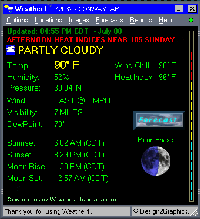 |
Orig. Artist: Kelly Shipp
Last Updated: 01/01/2000
For Weather1 Vs. 3.5 or later:
|
|
|
4Corner
|
 |
Orig. Artist: Chuck Warren
Last Updated: 02/16/2002
For Weather1 Vs. 3.5 or later:
|
|
|
Absolute
|
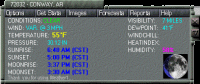 |
Orig. Artist: Jack-Eric Vandenbroucke
Last Updated: 02/16/2002
For Weather1 Vs. 3.5 or later:
|
|
|
Alum2000
|
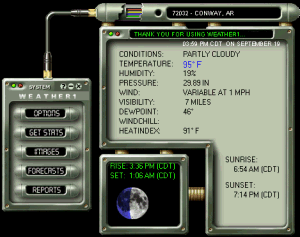 |
Orig. Artist: Lorene Lalonde
Artist's home page: http://welcome.to/lorene
Modifications by: Kelly Shipp
Last Updated: 12/29/2002
For Weather1 Vs. 3.5 or later:
|
|
|
AlumGoldc
|
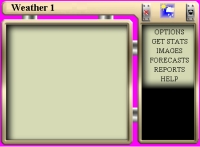 |
Orig. Artist: Lorene Lalonde
Artist's home page: http://welcome.to/lorene
Modifications by: Charles Warren
Last Updated: 09/23/1999
Download (old skin format): AlumGoldc.zip (162k)
|
|
|
AquaOSX
|
 |
Orig. Artist: Jack-Eric Vandenbroucke
Last Updated: 09/29/2002 by kshipp (SKN and mc view skin added)
For Weather1 Vs. 3.5 or later:
|
|
|
Boxster_S
|
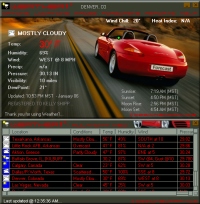 |
Orig. Artist: Kelly Shipp
Artist's home page: KellySoftware
Last Updated: 10/07/2002
This is the 2001 Porsche Boxster S. This is my first "car" skin.
Hope you like it. This skin works best with Weather1 Vs. 3.15.9 or later. I
created some custom sounds too! Be sure your color depth is set to 16-bit (High)
color or higher. Instructions on how to use the skin is in the readme.txt
file that will be installed with this file. This latest version of the skin
includes the menu background image. :)
For Weather1 Vs. 3.5 or later:
|
|
|
Chalk
|
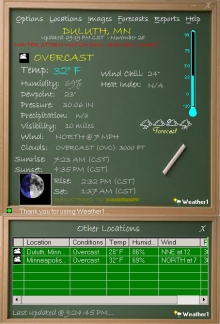 |
Orig. Artist: R. Merritt
Last Updated: 02/16/2002
For Weather1 Vs. 3.5 or later:
Notes: This skin looks best at True Color display setting.
|
|
|
Clean & Simple
|
 |
Orig. Artist: Brad Urdahl
Last Updated: 02/16/2002
For Weather1 Vs. 3.5 or later:
|
|
|
ColdSteel
|
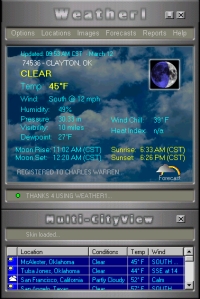 |
Orig. Artist: Chuck Warren
Last Updated: 02/16/2002
For Weather1 Vs. 3.5 or later:
|
|
|
CWarren
|
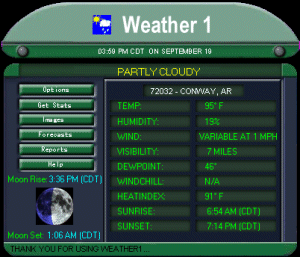 |
Orig. Artist: unknown
Modifications by: Charles Warren
Last Updated: 09/19/1999
Download (old skin format): CWarren.zip (56k)
|
|
|
Gold II
|
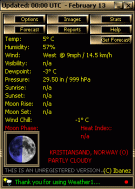 |
Orig. Artist: Trond S. Gimre
Last Updated: 02/13/2000
Download (old skin format): Gold_II.zip
|
|
|
Gold
|
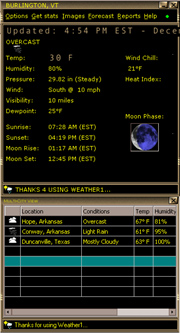 |
Orig. Artist: Trond S. Gimre
Modifications by: Kelly Shipp
Last Updated: 12/29/2002
Download (new skn format): gold.zip (~47k)
|
|
|
KS1
|
This one is shown actual size.
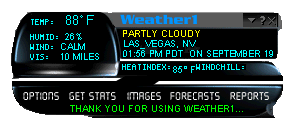 |
Orig. Artist: unknown
Modifications by: Kelly Shipp
Last Updated: 09/18/1999
Download (old skin format): ks1.zip (27k)
|
|
|
ksMoon1
|
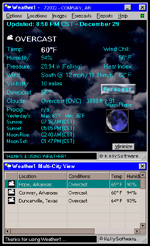 |
Orig. Artist: Kelly Shipp
Last Updated: 09/28/2002
For Weather1 Vs. 3.5 or later:
|
|
|
ksOak1
|
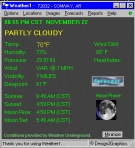 |
Orig. Artist: Kelly Shipp
Last Updated: 11/22/1999
Download (old skin format): ksOak1.zip (166k)
|
|
|
LCARS1
|
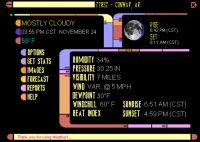 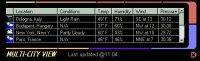 |
Orig. Artist: Frans Schilling (main skin), Michael Scuello (CityView skin)
Last Updated: 02/16/2002
For Weather1 Vs. 3.5 or later:
|
|
|
| >
Go to Skins PAGE 2 |
|
|
|
If you develop a cool skin for Weather1, please send me some
feedback.
If it's cool, I'll be happy to include it here! :)
Here are some good, general links for Skins:
Simple Skin Editor tutorial:
The reason for the newer skin functionality is for users to have FULL control
over how the GUI looks, as well as easily transfer interfaces and share them, etc.
I admit, my skin editor and documentation is lacking, but it's quite easy to modify
the look, once you know a little about the settings (skin file).
:)
For example, to change the font sizes/colors:
- Launch the Skin Editor. It can be launched from the Options->Skins menu.
- Load the default skin (in the Skins->default directory), by clicking the LOAD
button and selecting the skin file.
Note: If you're using Weather1 Vs. 3.5 or later, you'll need to first Unpack
the .skn file, so that you can load the skin.ini file into the skin editor.
(All skin options will then be loaded into the Skin Editor.)
- Now slide the window to the left side of the screen just to make it easy on us.
- Click the PREVIEW button at the bottom of the Skin Editor window.
You will now see the skin file loaded in preview mode.
You can drag this window to the right side of your screen if you like.
- Let's say, you want to change the font of the Temperature label.
So, let's go to the TEXT tab (on the tabs across the top of the editor).
On the left side, you will see a listing of all the text fields currently used
in this particular skin. In the current "default" skin, the Temperature
text is "TEXT_TEMP", so click it so that it's highlighted. You will now
see a small red box in the preview window, showing you where that
text will appear.
- At this point, you can modify it's X (left) or Y (top) position in the window,
as well as the font, etc. So, to change the font of this text area, click the
FONT button (near the middle of the window). You will now see all the
font options. Once you choose the font style, name, color, size, and close
the font dialog box, click the UPDATE button in the Skin Editor window.
It's also good practice to click the SAVE button too, while we're here.
To see this change, click the EXIT button and go back to Weather1 and
1)..go to Options->Skins->Load a Skin - and load the skin you just changed.
2)..update your stats. You will now see your changes implemented.
:)
About the middle of the window, you will see a Style selection box for "Normal", "Text",
and "Number". This determines the style of the text displayed. To display it using
the font details you specify, use NORMAL. To use the Text bitmap (that is in that skin's
folder), use TEXT. To use the Numbers bitmap (in that skin's folder), use "Number".
I will include this in an upcoming help file as well.
:)
|